Enquiries
Receive a guest's message and optional stay details by email. Test your site's mail delivery before publishing the form.
On this page
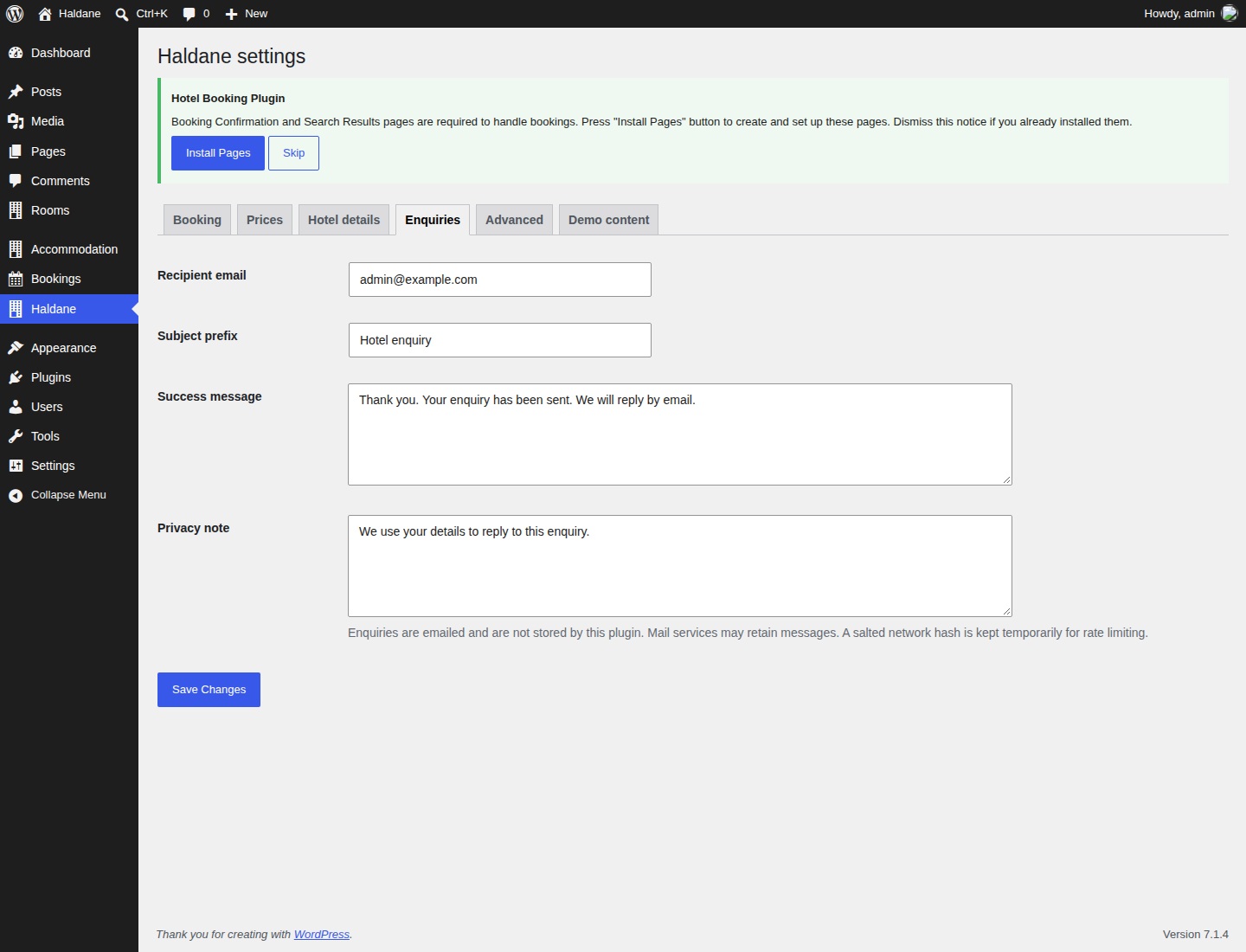
Choose where enquiries go
- Open Haldane → Enquiries.
- Set Recipient email to a mailbox your team monitors. The default is the WordPress administration email.
- Set a useful Subject prefix. The hotel name is added to the subject.
- Review the Success message and Privacy note.
- Select Save Changes.
Use a success message that says the enquiry was sent and explains how you will reply. An enquiry does not confirm a booking. The email includes the guest's name, email, optional phone number, message and any selected dates, nights and guest counts. Replying to it uses the guest's email address.
Add an enquiry form
Insert the Enquiry form block on a Contact page. It uses the same settings and spam protection as the booking dialog. Name, email and message are required; phone is optional. A general contact enquiry does not require dates.
For a booking enquiry, choose Enquiry only in Haldane → Booking. Guests select a valid stay before continuing to the form. The shared booking dialog also has Ask a question for a message without dates. Several forms can appear on one page; each has its own submission status.
Built-in spam protection
- A WordPress REST nonce checks the form request.
- A hidden field must remain empty.
- A signed form timestamp requires at least three seconds before submission.
- A rate limit allows five attempts per hour for a salted hash of the connection IP address.
There is no third-party CAPTCHA service. A message asking the guest to wait can appear if the form is submitted too quickly. Reopen an expired form and try again. A shared office or network may reach the attempt limit together.
If the site is behind a reverse proxy, ask your host to supply the correct connection address in REMOTE_ADDR. The toolkit does not trust arbitrary forwarded headers.
Mail delivery and SMTP
The toolkit sends through WordPress's wp_mail function. A success message means the mail system accepted the message, not that the destination mailbox received it.
- Install an SMTP or mail delivery plugin compatible with your mail service.
- Configure it using your provider's instructions. Use an authorised sender address on your own domain.
- Send the mail plugin's test message and check the destination mailbox and spam folder.
- Open the public site in a private window and send a real test enquiry.
- Check the subject, message, stay details and Reply-To address.
If it does not arrive, check the recipient for typing errors, inspect the mail plugin's delivery result and ask your host or mail provider to check its logs and domain authentication. If your mail plugin stores messages in a log, include that storage in your site's privacy information.
Page caches and expired forms
The script refreshes the nonce and signed timestamp from /wp-json/haldane/v1/enquiry-token. Exclude both that endpoint and /wp-json/haldane/v1/enquiry from caching in your cache plugin, host and proxy/CDN. The endpoints send no-store headers, but a forced cache rule can override them.
If the form says to reopen it, clear caches and try a private window. Check that security rules allow the token request and the form's POST request. Avoid delaying the toolkit's booking script until after the first form interaction.
What is stored
The toolkit does not save enquiry submissions in the WordPress database. It temporarily holds a salted connection-IP hash, attempt count and expiry for up to one hour. It does not store the raw IP address. Your web server, mail provider or other plugins may keep their own logs and messages.
Review the toolkit's suggested wording in WordPress's privacy-policy tools under Settings → Privacy. Complete your contact details and retention information, and explain any SMTP service you use. See Privacy and external services.