Booking
Connect guests to your existing booking engine, use MotoPress on your site, or receive booking enquiries by email.
Haldane Toolkit prepares a booking link with the guest's selected dates and guest counts. It does not process payments, reserve rooms or synchronise inventory. Your booking provider confirms actual availability and the final price.
On this page
How the Book button works
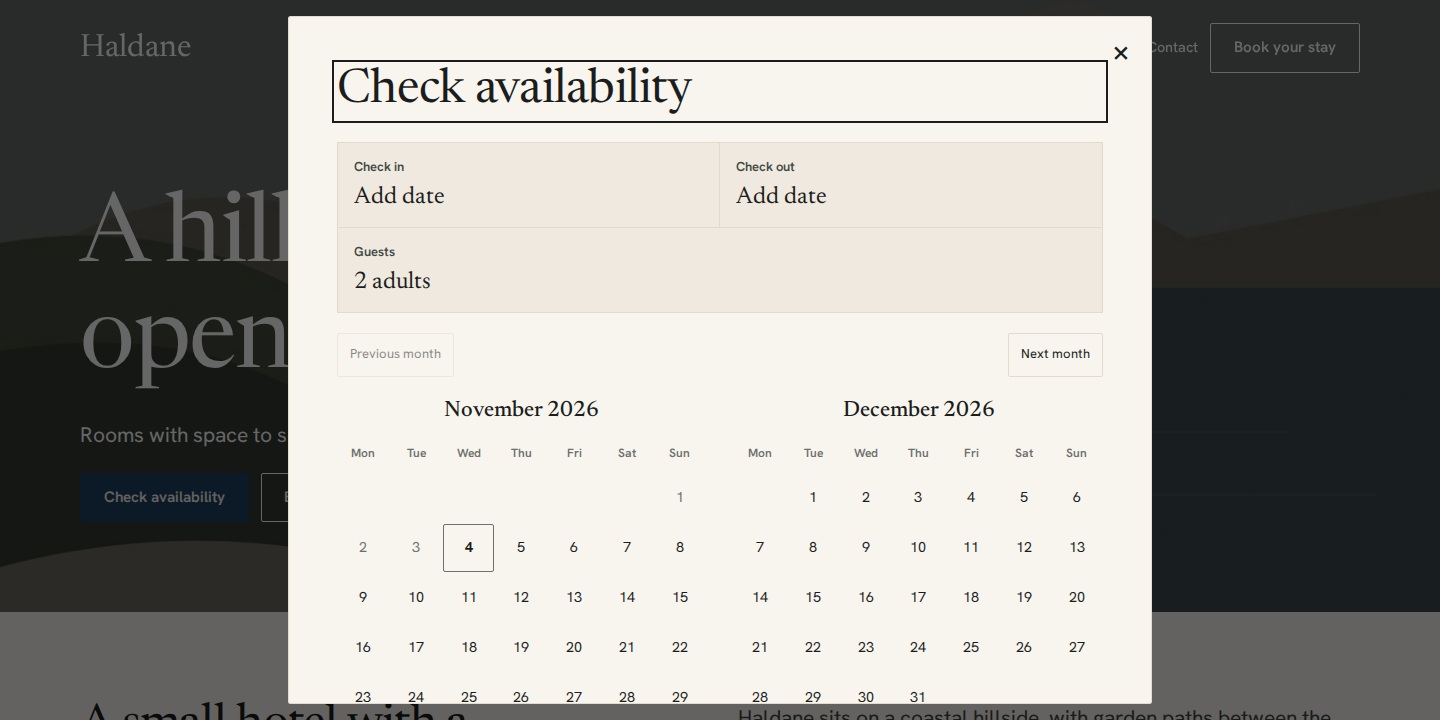
The theme's header, footer and mobile booking bar link to #book. With Haldane Toolkit active, they open the shared booking dialog. You can also insert the toolkit's Book button block.
For a core Button block, set its link to #book. The theme uses haldane-book-trigger as the Button block's Additional CSS class. Developers can also use [data-haldane-book] or a link inside .haldane-book-trigger. Without the toolkit, replace the anchor with your real booking page URL.
A room's Booking URL override takes precedence in its room cards and the toolkit Book button. Header and footer buttons continue to use the shared dialog.
Add a booking bar
- Edit a page and insert the Booking bar block.
- In the block settings, choose Bar for a horizontal form or Stacked for an open calendar and guest controls.
- Optionally set a button label for that block and choose whether it shows children.
- Save, then select arrival, departure and guests on the public page.
All bars and the dialog share the current selection. The browser keeps it in session storage for the current session. A bar that hides children submits zero children. Date labels follow the WordPress site locale. Set the site's timezone and week start in Settings → General.
Common booking settings
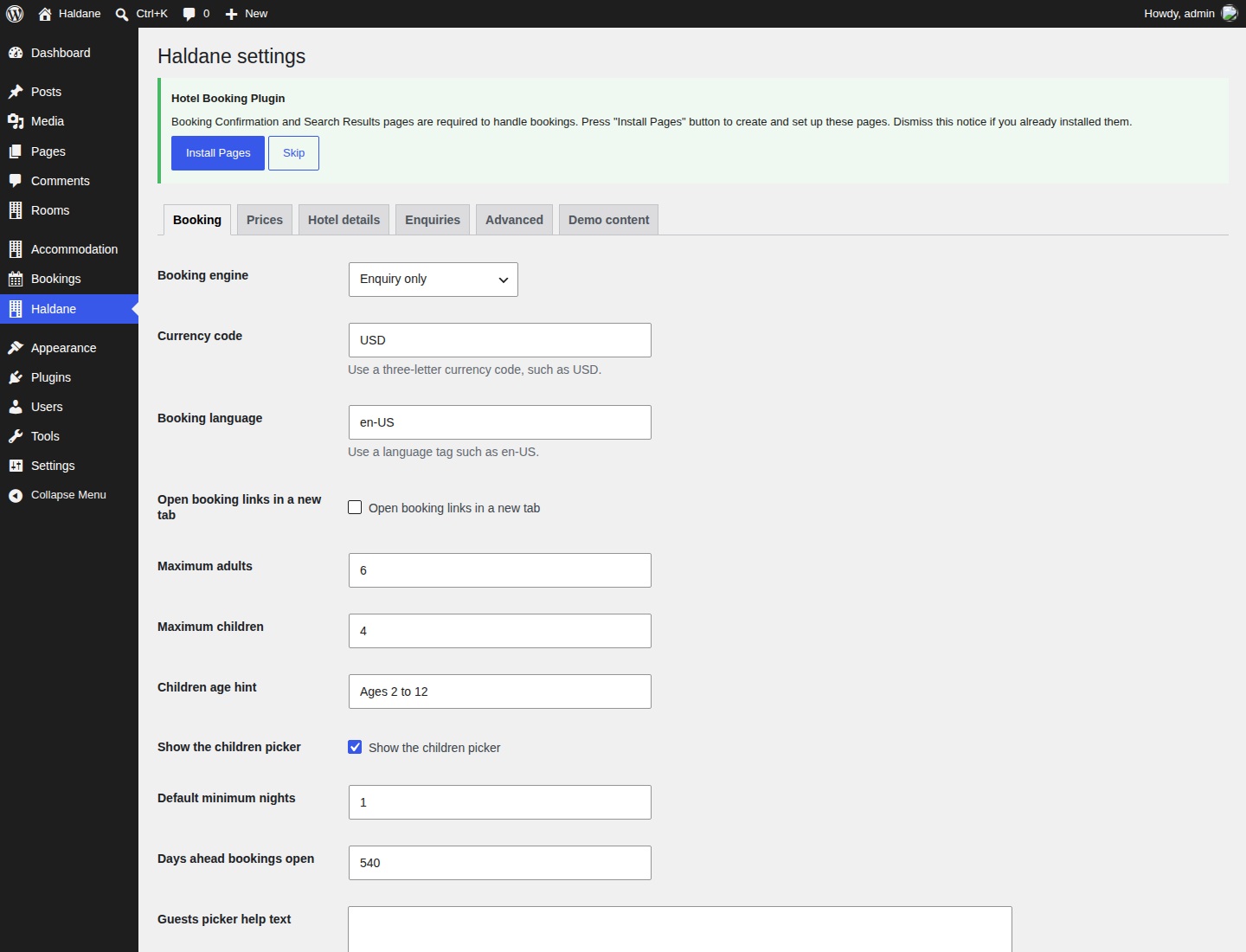
- Open Haldane → Booking.
- Choose your Booking engine and complete the provider fields described below.
- Set the three-letter Currency code, such as
USDorEUR. - Set Booking language, such as
en-US. - Choose whether booking links open in a new tab.
- Select Save Changes.
A property code is the public identifier from your booking link. Do not enter an API key or account password.
Cloudbeds
- Open the public booking page supplied by Cloudbeds.
- Find
https://hotels.cloudbeds.com/reservation/YOUR-CODE. - Copy only the part after
/reservation/, stopping before any?or#. - Choose Cloudbeds and paste it into Property code or configuration ID.
- Add a Promotion code only if your property uses one.
- Leave Send dates after # off unless your older booking page needs fragment parameters. Save and test.
The link sends checkin, checkout, adults, kids and lowercase currency. Promotion code adds promo. Dates use YYYY-MM-DD.
SiteMinder
- Open your property's public direct-booking page.
- Copy the identifier after
/properties/from its URL, without the query or fragment. - Choose SiteMinder and enter that identifier.
- Match Booking region to the public page:
direct-book.comuses Europe, Middle East, Africa and the Americas;book-directonline.comuses Asia Pacific. - Save and test.
The link uses checkInDate, checkOutDate, items[0][adults], items[0][children], items[0][infants]=0, currency and locale. Locale uses the first part of your booking language. There is no separate infant picker.
Little Hotelier
Choose Little Hotelier and follow the same steps as SiteMinder. Take the code after /properties/ from the public booking link supplied by Little Hotelier and choose the region that matches its domain. This preset uses the same date and guest parameters as SiteMinder.
These two presets use the parameter names shown above. If your provider gives you a different link format, ask for its current public link or use a Custom URL template matching its instructions.
Mews
- Find your Mews booking engine link in the property's booking engine integration settings.
- In
https://app.mews.com/distributor/YOUR-CONFIGURATION-ID, copy the identifier after/distributor/, without any query or fragment. - Choose Mews and enter that configuration ID. It is a public booking configuration ID, not an API credential.
- Add a Voucher code if needed, then save and test.
The link sends mewsRoute=rooms, mewsStart, mewsEnd, mewsAdultCount, mewsChildCount, language and currency. A voucher adds mewsVoucherCode.
MotoPress Hotel Booking
Activate Hotel Booking Lite or Pro and configure its Search Results page in Accommodation → Settings. Then choose MotoPress Hotel Booking in Haldane → Booking and save. This option appears only when MotoPress is active. It needs no property code.
The toolkit reads MotoPress's Search Results page and sends mphb_check_in_date, mphb_check_out_date, mphb_adults and mphb_children. If the search page is unavailable, the dialog falls back to an enquiry. See the full MotoPress setup.
Custom URL, including Beds24
Choose Custom URL and enter a complete HTTP or HTTPS link in Custom URL template. Ask your provider which parameters its public booking page accepts. Put tokens in the path, query or fragment, never in the hostname. All replacement values are URL-encoded.
| Token | Meaning and example |
|---|---|
{checkin} | Arrival as YYYY-MM-DD, for example 2027-06-12. |
{checkout} | Departure as YYYY-MM-DD, for example 2027-06-15. |
{checkin_dmy} | Arrival as DD-MM-YYYY, for example 12-06-2027. |
{checkout_dmy} | Departure as DD-MM-YYYY, for example 15-06-2027. |
{checkin_mdy} | Arrival as MM/DD/YYYY, for example 06/12/2027. |
{checkout_mdy} | Departure as MM/DD/YYYY, for example 06/15/2027. |
{nights} | Number of nights, for example 3. |
{adults} | Adult count. |
{children} | Child count. |
{guests} | Adults plus children. |
{currency} | The configured three-letter currency code. |
{lang} | The configured booking language. |
A Beds24-style example is shown below. Replace YOUR-PROPERTY-ID with your property's public Beds24 ID from its booking link. This is a template example, not a working property link.
https://beds24.com/booking2.php?propid=YOUR-PROPERTY-ID&checkin={checkin}&numnight={nights}&numadult={adults}&numchild={children}There is no general date-format option. Use one of the six supported date tokens. Unknown or misspelled tokens leave the link invalid and lead to the enquiry fallback, so test the saved template carefully.
Enquiry only
Choose Enquiry only to keep guests on your site. They choose dates and guests, then complete an email enquiry. No reservation or payment is made. Set the recipient and wording in Haldane → Enquiries and test delivery.
The dialog also offers Ask a question without choosing dates. An incomplete date selection is left out of that enquiry. A booking enquiry submitted through the booking bar requires a valid stay.
Guest limits and booking window
- Maximum adults: 1 to 50. At least one adult is required.
- Maximum children: 0 to 50.
- Children age hint: explain your age policy. This label does not send individual ages to the engine.
- Show the children picker: switch it off if the property does not accept children.
- Guests picker help text: add useful occupancy guidance.
- Default minimum nights: 1 to 365, used outside a season's specific rule.
- Days ahead bookings open: 1 to 1825 nights starting today in the site's timezone. Departure may be the day after the last night.
- Booking bar button label: the default submit text, unless a block overrides it.
Set guest limits to match your provider. They are shared form limits, not separate room inventory or occupancy rules. Check actual room occupancy in the booking engine.
Test before accepting guests
- Save settings and clear any page cache.
- Open the public site in a private browser window.
- Test the header, footer and mobile Book buttons.
- Select a future arrival, departure and guest counts, then submit.
- Confirm the destination is your property and shows the intended dates, nights, guests, currency and language where supported.
- Try a room with a booking URL override separately.
- Test closed nights and minimum stays in the calendar. Confirm the engine remains the final authority.
- Test the enquiry fallback and confirm the email arrives. Repeat on a phone and with the keyboard.
If dates do not carry through, check the property code, region and custom parameter names. For Cloudbeds, also check the fragment option. For MotoPress, check the assigned results page.